



Until now, every GeoScreen report has started from a single point. You type an address or a grid reference, drag the pin if it’s in the wrong place, and the report searches outwards from there.
That works for a house plot. It doesn’t really work for a 20 hectare housing site, a solar farm or a two kilometre cable route, and that’s the feedback I kept getting from people who already have a red line boundary sitting in a drawing. So you can now draw a site boundary or a route on the map, or upload one, and the report is built around the whole thing.
The drawing part was the easy bit. Most of the work went into deciding what a report should say when the site isn’t a point any more, and I want to set out those decisions, because they change what the ratings mean.
Three ways to order
A single location works exactly as before. Point reports haven’t changed, and we tested that: the full set of test reports came out with the same ratings and tables as before.
A site boundary is an outline you draw or upload. A linear route is a line, drawn from the start, for a pipeline, cable, road or similar. You pick a corridor width of 5, 10, 15 or 20 metres (10 by default). Anything wider than 20 metres is really a site, so it goes through the boundary tool.
The rating is the worst case anywhere on the site
This was the first decision and the most important one. If a site is partly in Flood Zone 3, is it a flood risk site? We decided yes. Each hazard is rated on the worst thing found anywhere within the boundary, and the report says how much of the site it affects.
The alternative was to rate the middle of the site, which would be simpler and would often give a nicer answer. That’s the problem with it. One of our test plots was a 1 hectare site in Kingston. As a point it rated Low overall, because the pin sits just outside the flood extents. Drawn as a boundary, about 63% of the plot is in Flood Zone 2 and a surface water flood extent, and it rates High. The centre point was telling you something true about the centre and nothing about the rest of the site.

The worst case can also be a small part of a site. On a test boundary at Tewkesbury, about 2% of the site falls in Flood Zone 3. That’s enough to rate it High, but the report says it’s about 2%, and that the centre of the site is in Flood Zone 1, so you can see straight away whether a small change to the layout deals with it. A High rating with the share next to it is more useful than a Low rating that hides the corner.
We used one rule throughout the testing: a boundary or route should never rate better than a point inside it. If it did, something was wrong. That rule caught a few problems along the way.
Distances are measured from the edge
In a point report, “250m north” means 250 metres from the pin. With a boundary, we measure from the nearest edge of the site, and the direction is taken from that same edge. Anything inside the boundary is listed as “Within site”, or “On route” for a route.
It sounds obvious, but it took a while to get it applied everywhere. On a large quarry site in Weardale that we used for testing, one section of the report described an old mine as about 730 metres away. That was from the centre of the site. Measured from the boundary it was about 50 metres away, and the quarry on the old maps was inside the site. Every table, figure and paragraph now measures to the edge.
The same applies to designated landscapes. If a site is just outside a National Park or National Landscape, the report says roughly how far outside the boundary it is. If part of it is inside, it says so.
Routes get chainage
For a route, distance from the line isn’t enough on its own. What you want to know is where along the route something is. So route reports use chainage throughout: it’s marked along the route on the figures, it’s in the tables (“On route (Ch 0+442)”), and the text uses it too. Flood risk, for example, is given as stretches of the route, like “Flood Zone 3 between Ch 0+166 and Ch 0+292”.
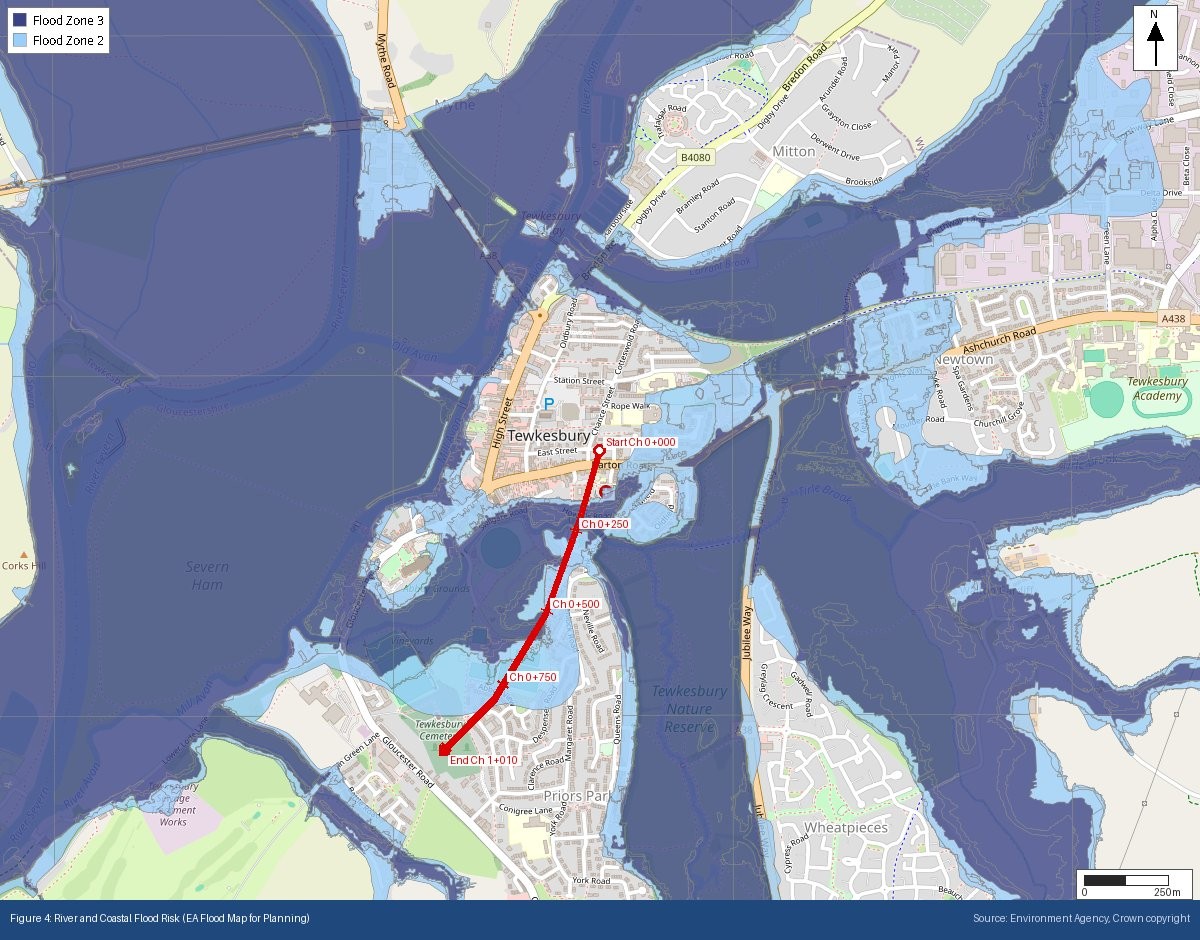
If your route is one section of a longer scheme, you can enter a starting chainage, so the report matches the numbering you’re already using.
Size limits, and why the price doesn’t change
Boundaries and routes cost the same as a point report, £150 for Tier 1 and £75 for Tier 0 (plus VAT), for any site up to 100 hectares and no more than 3 km end to end.
I looked at charging by area, which is how most search reports are priced. But when I measured what a report actually costs us to produce, a 100 hectare site cost about the same as a point. Most of it is the same set of data calls and maps whatever the size. So there’s no good reason to charge more.
The 3 km limit is there because an area limit on its own doesn’t work. A long thin strip can be under 100 hectares and run for miles, and at that point the maps zoom out until you can’t read them. Anything over either limit can be split into separate reports, or you can get in touch with us and we’ll talk it through.
Council and country borders
A site can cross a council boundary, and that’s fine. The report names every council the site falls in, with an approximate split. If the site is inside a National Park, the report names the National Park Authority as the planning authority, and notes that the council still deals with building control and highways. The Cairngorms work differently: the councils decide applications and the Park Authority can call them in, so the report says that instead.
Country borders are a different matter. England, Wales and Scotland use different data sources, different planning policy and, in places, different definitions (Scotland has no Flood Zones at all), so one report can’t honestly cover both sides. If a boundary or route crosses the England-Wales or England-Scotland border, the order form shows the border on the map and asks you to order a report for each country’s part. Drawing roughly up to the border is fine, as small overlaps are ignored. For a route, you can start the second report’s chainage where the first one ends.
Bigger sites mean longer tables
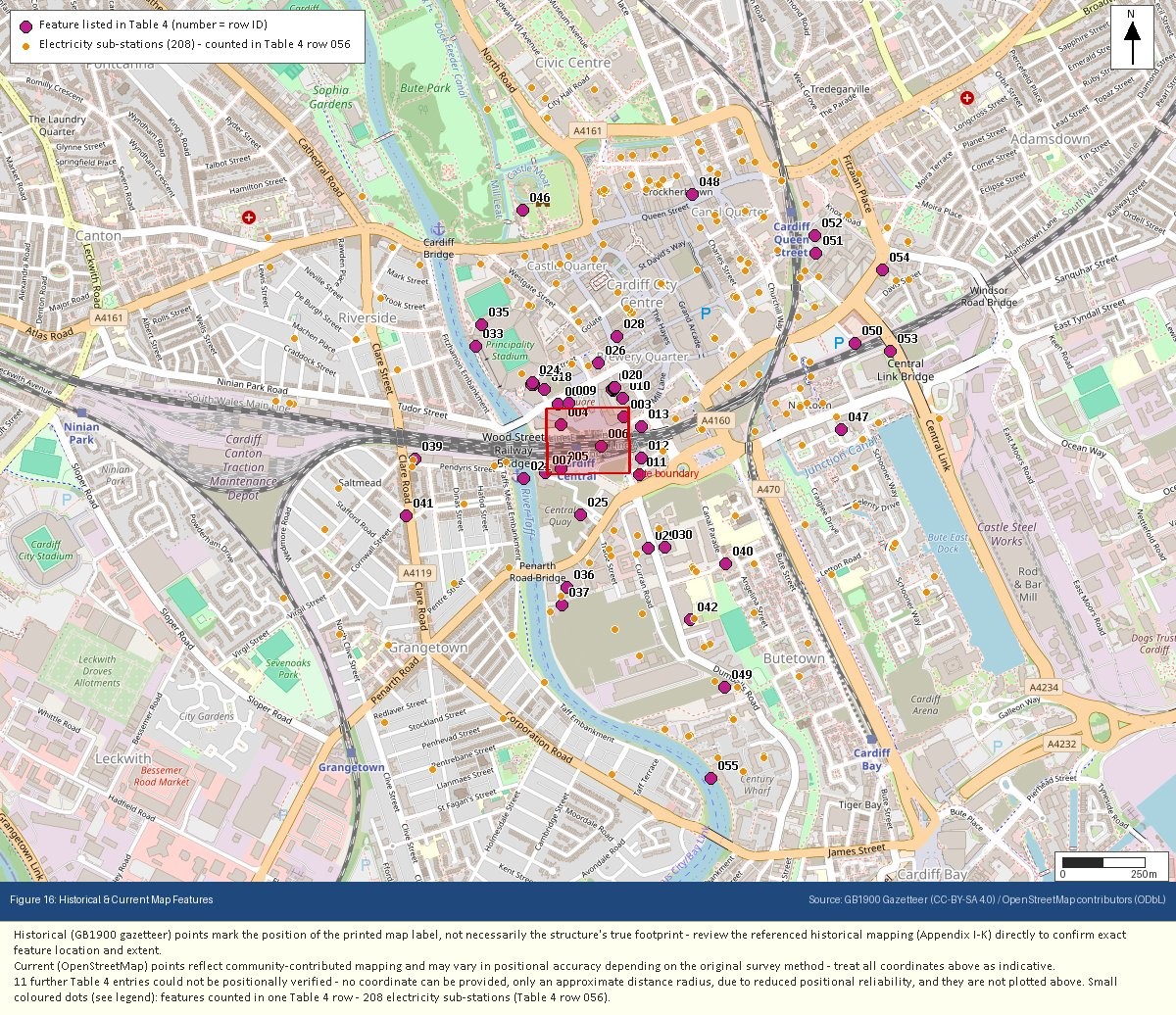
A bigger site picks up a lot more nearby features. A boundary in central Cardiff had 208 electricity sub-stations within a kilometre. Listing every one in a table helps nobody, so boundary and route reports now split the tables in two: everything within the site or within 100 metres of it, and then the wider study area out to a kilometre. In the wider band, large groups of minor features like sub-stations are counted in one row. Every one of them is still plotted on the figure.
Boreholes work the same way. The report lists every BGS borehole record within 100 metres of the site. If there are fewer than 10, it adds the most useful ones from further out, spread along the route or across the site rather than bunched in one corner.
What it doesn’t do
The boundary is yours. GeoScreen assesses the shape you draw or upload, and it doesn’t check it against title plans, so it’s worth making sure it’s the right one. Uploads can be GeoJSON, KML or KMZ (the Google Earth formats), one site per file. The geology still comes from the same national 1:625,000 BGS mapping as point reports. It’s now checked at several points across the site rather than one, but it still won’t show local detail.
If you have a site boundary or a route you’d like to try it on, you can order from geoscreen.uk. If you’d like to see how it handles a particular site first, get in touch and I’ll happily run through it with you.
